How to Use Barcode Scanning in Kollectia to Build Your Game Library 10x Faster (2026)
By Olika
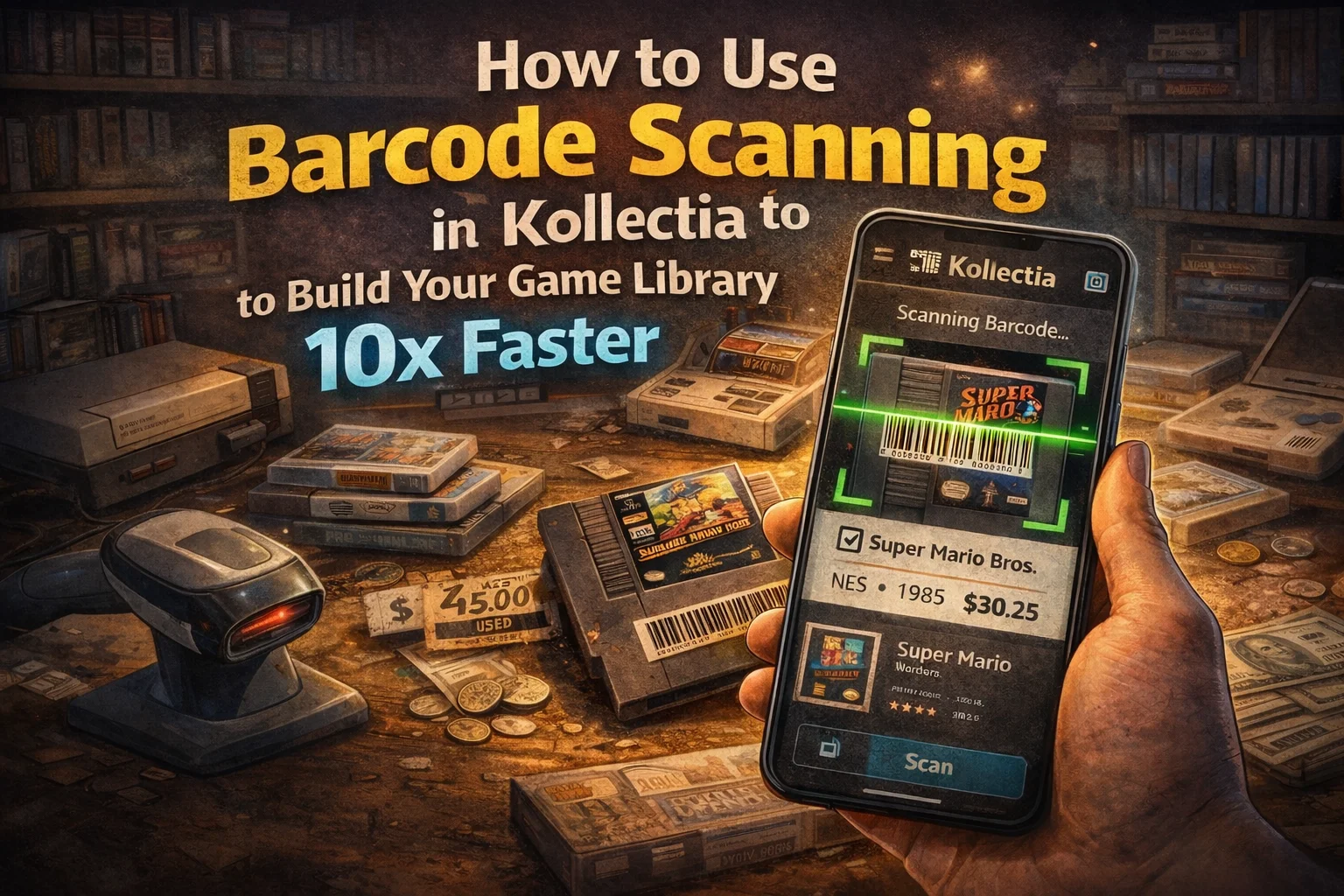
How to Use Barcode Scanning in Kollectia to Build Your Game Library 10x Faster (2026)
Building a video game collection is thrilling—until you realize you've got 50+ games and no idea what you actually own, where they're stored, or what they're worth. Most collectors resort to painstaking manual entry: searching for each game online, typing titles, hunting for release dates, checking conditions. It's tedious, error-prone, and can kill the joy of collecting.
What if there was a faster way?
Kollectia's barcode scanning feature transforms collection building from a weekend chore into a quick, effortless process. Scan a barcode. Get instant data. Move on. In this guide, we'll show you exactly how to use it—and why it'll save you hours.
Section 1: Why Manual Entry is Killing Your Collecting Momentum
The Hidden Cost of Typing Every Game
Let's do the math. You've got 100 video games. Average entry time: 3-5 minutes per game (searching for the right version, checking formats, entering condition notes, finding pricing).
That's 300-500 minutes. That's 5-8 hours.
Most collectors abandon their inventory halfway through because it's boring, repetitive, and feels like work instead of play.
But here's the real problem: mistakes compound. You typo "Super Mario Bros" as "Supre Mario Bros." Now it won't show up in searches. You forget to specify which version (NES, SNES, Switch). You miss price updates because the system doesn't recognize it. You can't compare values across platforms.
Manual entry is slow, mistakes are common, and the data quality suffers.
And that's before accounting for the opportunity cost. The time you spent typing is time you didn't spend:
- Photographing your collection for your public profile
- Engaging with the Kollectia community
- Researching undervalued games to acquire
- Actually enjoying your collection
Real Data: Manual vs. Scan Time Comparison
Here's what Kollectia users reported:
| Task | Manual Entry | Barcode Scan | Time Saved |
|---|---|---|---|
| Adding 1 game | 4-5 min | 10-15 sec | 20-24x faster |
| Building a 100-game library | 400-500 min (6.5-8 hours) | 25-35 min | 12-15x faster |
| Catching data errors | Variable (often missed) | Automatic validation | Near-zero errors |
| Pricing updates | Manual re-research | Automatic (if enabled) | Continuous |
The difference is staggering. Users who switched to barcode scanning reported completing their entire collection inventory in a single evening instead of weeks.
Section 2: How Barcode Scanning Works (The Behind-the-Scenes)
What Happens When You Scan
When you point your phone camera at a barcode and hit "scan" in Kollectia:
- Barcode recognition: Our system instantly decodes the barcode (UPC, EAN, or GameID format)
- Database lookup: Kollectia queries our game database
- Instant data population: Title, release year, platform, publisher, rating, market price
- Your input: You confirm details, add condition notes, photos, or personal tags
- Saved: The game is added to your collection with full metadata
The entire process takes 10-15 seconds per item. No typing. No searching. Just point, confirm, and move on.
Where Barcodes Live
Video game barcodes are printed in specific locations:
- Physical cases: Bottom right corner (almost always)
- Game covers: Sometimes on the back cover or side
- Cartridges/discs: Some cartridges and game discs have barcodes (varies by era)
- Manuals: If the case is missing, some manuals include barcodes
Pro tip: Older games (pre-2000) may not have barcodes. Kollectia also supports manual barcode entry—just type the UPC code you find online, and the system treats it like a scan.
What Data You Get (Automatically)
When Kollectia's database recognizes your barcode, it populates:
- Exact title (including regional variants like "US version" vs "Japanese import")
- Release year and platform (NES, SNES, Genesis, PS1, PS5, Nintendo Switch, etc.)
- Publisher and developer
- Box art (optional display photo)
- Market price (current market value for your condition)
- Rarity rating (how hard it is to find)
You then add your details:
- Condition (mint, like-new, good, fair, poor)
- Ownership date
- Purchase price
- Personal notes ("First game my dad gave me" or "Still sealed")
- Photos (your own collection photo)
Section 3: Step-by-Step: Using Barcode Scanning in Kollectia
Getting Started (Your First Scan)
- Open Kollectia → Sign in to your account
- Go to "Add to Collection" → Select collection type (Video Games)
- Choose "Scan Barcode" button (vs. manual entry)
- Allow camera access (first time only)
- Position barcode in frame → Keep it steady for 2-3 seconds
- Wait for recognition → System beeps/vibrates when detected
- Confirm details → Verify the game is correct (especially if you have multiple versions)
- Add personal info → Condition, photos, notes
- Save → Game added to your collection
First scan completed. Total time: ~15 seconds.
Pro Tips for Accurate Scanning
Lighting: Scan in natural light or well-lit areas. Barcodes are harder to read in dim light or shadows.
Angle: Hold the barcode parallel to your phone camera. A 45-degree angle works too, but straight-on is fastest.
Partial barcodes: If the barcode is damaged or partially covered, Kollectia's partial-read feature can often still recognize it (80%+ accuracy).
No barcode? Not every game has one (rare). Kollectia lets you search manually using the title—you'll still get all the automatic data without the scan.
Common Barcodes You'll Encounter
Different game publishers use different barcode formats:
| Platform/Era | Barcode Type | Notes |
|---|---|---|
| NES (1985-1990) | UPC, 12-digit | Most carts have them on rear labels |
| SNES (1991-1999) | UPC/EAN 13 | On case back, sometimes missing |
| PlayStation 1 (1995-2006) | EAN 13 | Standard on all PS1 cases |
| Nintendo 64 | Rare/uncommon | Cartridges often don't have barcodes |
| GameCube | UPC standard | All cases included barcodes |
| PS2/Xbox/GC | EAN 13 | Industry standard, 100% coverage |
| Modern | UPC + digital codes | QR codes sometimes included too |
| Japanese imports | JAN codes | Similar format, Kollectia recognizes these |
If a barcode doesn't scan: Try the back of the case, the inside flap, or the manual. Older games sometimes have barcodes in unexpected places.
Batch Scanning: Build Your Library Fast
Got 30 games to add? Don't do them one by one.
- Gather all games → Organize by platform (makes it faster)
- Set a timer → See how fast you can scan
- Tap "Add Multiple" → Kollectia's batch mode lets you scan consecutively
- Breeze through → Scan, confirm, next. 10-15 seconds per game.
- Add details later → You can photograph and write notes in bulk later, or add them one at a time.
Real example: One collector completed a 47-game collection in 22 minutes. Manual entry would have taken 3-4 hours.
Conclusion: Scan Once, Catalog Forever
Stop typing. Start scanning.
Barcode scanning removes the biggest friction point in collection building: boring data entry. What used to take 8 hours now takes 35 minutes. Errors drop to near-zero. You get accurate pricing, community recognition, and a financial dashboard showing your collection's real value.
The difference between collectors who stick with their passion and those who quit? Often, it's whether they overcame the inventory hurdle. Barcode scanning solves that. It lets you focus on what matters: hunting, trading, and sharing your collection with people who get it.
Ready to build your game library fast?
Try Kollectia — Upload your first game in 30 seconds.